When-Then Rules
When-Then rules are used in combination with the or-rules UI component. They are meant to be used to allow application users to define 'When this, then that' statements. For example "During weekdays, when it's cold, turn on the lights 5 minutes before sunset" or "send push notification to anybody who reaches the stadium".
Note that, next to changing other attribute values, When-Then rules support sending notifications, generating alarms and linking to external systems using web hooks. Web hooks allow you to connect to any other application based on an event. Options are endless, from connecting to your Maintenance or Messaging service to your ERP or CRM system.
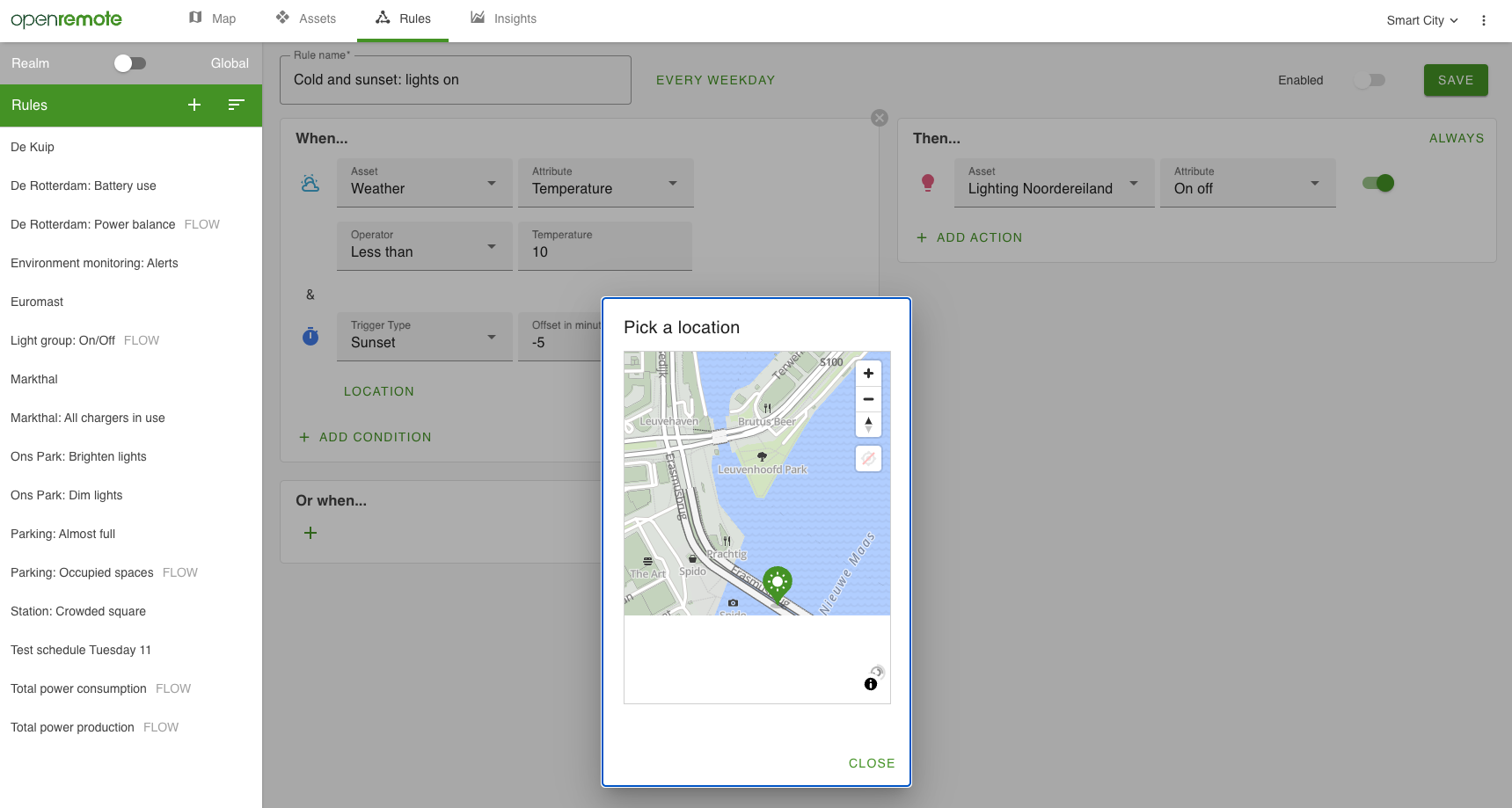
Guide to setting up your first When-Then rule
To get familiar with the When-Then interface we will be creating a rule that turns on lights when the temperature drops below a certain threshold and just before sunset (makes sense right?). We only want this rule to be active on weekdays. This guide assumes you are using the Demo. Otherwise you need to create some assets first.
To create an asset and configure an attribute so it can be used in rules do the following:
Creating an asset:
- Go to the
Assetspage and click the+icon - Select the
Weather Assetand name it Weather - Click
ADDto create the asset
Enabling the rule state on an attribute so it can be used in rules:
- Select the Weather asset and click on
MODIFY - Click on the
>icon of thetemperatureattribute and click on+ ADD CONFIGURATION ITEMS - Select
Rule stateand clickADD - Click
SAVEto save the changes
The remainder of the guide assumes you are using the Demo where all assets and attributes have already been created and configured:
- Switch from the
masterrealm to theSmart cityrealm in the top. You will see the assets we use a demo setup. - Navigate to the
Rulespage, here you will find some demo rules that are running at the moment. We will add our own. - Add a new rule:
- Click the
+. - Select 'When-Then'.
- Name it
Cold and sunset: lights on.
- Click the
- Create the When side of the rule:
- Click the
+, a list of asset types will appear. - Select
Weather Asset, the next will appear showingAny of this type. - Switch to the asset named
Weather. - In the next field select the attribute of interest:
temperature. - In the next field select the operator:
less than. - Finally set a value of
10. You have now finished the first condition. This can be combined throughANDorORwith other conditions.
- Click the
- Create a second condition to monitor the humidity:
- Click the
+in the section below where it saysADD CONDITIONand selectTime. - Select Trigger Type
Sunset. - Set the value
-5for theOffset in minutes. - Select:
location. You have finished theANDcondition. If both conditions are met, theThenactions will trigger.
- Click the
- Create an action on the
Thenside of the rule:- Click the
+on the right in theThensection. - Select the
Light Assetasset type. - Select the lights that you want to control. In this case we want to turn on all lights at once using the
Lighting Noordereiland. - Select the attribute you want to control:
On Off. - Toggle the switch on. The Actions are done.
- Click the
- Set the schedule for this rule:
- Open up the scheduler by clicking
Always activenext to the rules name. - Select
Plan a repeating occurrenceas we want the rule to work only on weekdays. - At
Repeat occurrence everyclick the fiveweekdays - Leave the
Repetition endsatNever - Click
Applyand save the rule in the top right.
- Open up the scheduler by clicking
Your rule is finished! Every weekday the rule will check if both conditions are met and if so, turns on the lights of Noordereiland.